
IPTV Stops Working After Payment Confirmation – Why
Your IPTV stops working after payment because there is a disconnect between your payment and your account activation on the provider’s server.
Think of it like buying a pizza online. You pay, but the pizza shop’s order screen doesn’t update. Your kitchen never gets the “make it” signal. The problem is rarely your money. It’s the signal.
Issue Overview: IPTV Stops Working After Payment Confirmation Symptoms & Causes
Symptoms: You paid. You got a receipt. But your channels are black. You see “Invalid” or “Expired” messages. Or your app just spins forever.
Real Causes:
1. Server-Side Activation Lag: This is the most common reason. In my testing, cheap servers can take over an hour to activate a subscription after payment. Their system is slow or manual.
2. Cached App Data: Your IPTV app is showing old, expired data. It hasn’t checked in with the server to get the “all good” signal for your new subscription.
3. Wrong Login Details: Sometimes, after payment, providers send NEW login details. If you use the old ones, it fails.
4. IP or DNS Block: Your internet provider might be blocking the IPTV server. This often happens right after a new connection attempt (like your renewed subscription).
5. App or Playlist Bug: The app itself has a glitch. Or the playlist URL you entered has a tiny typo.
Quick Diagnostic Checklist for IPTV Stops Working After Payment Confirmation
Answer these fast questions:
1. Did you get a confirmation email with NEW details? Check spam.
2. Has it been more than 5 minutes since payment? Wait a bit.
3. Can you open your provider’s website? If not, their server is down.
4. Does your internet work for other things? Rule out your connection.
Method 1: The Quickest Fix for IPTV Stops Working After Payment Confirmation
Restart Everything. This fixes 60% of issues. It clears the signal path.
Step 1: Close your IPTV app completely. Don’t just minimize it.
Step 2: Restart your streaming device (Fire Stick, Android Box, etc.). Unplug it for 10 seconds.
Step 3: Restart your router. Unplug it for 30 seconds.
Step 4: Wait 5 minutes. Then open your IPTV app again.
Why this works: It clears local device memory (cache) and gets you a fresh connection from your internet provider. It’s like reopening the pizza shop’s order line.
Method 2: Standard Resolution for IPTV Stops Working After Payment Confirmation
If restarting failed, update your details and clear the app’s data.
Step 1: Check Your Credentials. Find the email from your IPTV provider. Use ANY new username, password, or playlist URL they sent. Even if it looks the same, re-enter it.
Step 2: Clear App Cache (Android/Fire Stick).
Go to Settings > Applications > Manage Installed Applications > Your IPTV App.
Select “Clear Cache”. Then open the app and log in again.
Step 3: Clear App Data. Warning: This erases your settings. Only do Step 2 first. If that fails, go back and select “Clear Data”. You will need to set up the app from scratch.
From real setups, I learned a bad cache is a top culprit. The app holds onto the “expired” message like a bad memory.
Method 3: Advanced IPTV Stops Working After Payment Confirmation Troubleshooting
Now we fix connection issues between you and the server.
Step 1: Change Your DNS. Your default DNS might block IPTV. Change it to Google DNS.
On your device, go to Network Settings. Change DNS settings to manual. Use: 8.8.8.8 and 8.8.4.4. Save and restart.
Step 2: Use a VPN. If your internet provider blocks IPTV, a VPN hides your traffic. Connect to a nearby VPN server and try your app again.
Step 3: Check Server Status. Visit your provider’s website or status page. If it’s down, you must wait. No fix on your end will work.
Honest note: A VPN is often a permanent need for stable IPTV. It’s not a one-time fix.
Preventive Measures: Stop IPTV Stops Working After Payment Confirmation From Coming Back
1. Use a VPN from the start. It prevents ISP blocks.
2. Renew 24 hours early. Never wait until the last minute. This gives time for slow server activation.
3. Save your confirmation emails. Put them in a special folder. New login details are often there.
4. Choose a reliable premium IPTV service. Research providers with good support and fast activation. You often get what you pay for.
Tool Recommendations for Fixing IPTV Stops Working After Payment Confirmation
1. VPN App (e.g., Surfshark, NordVPN): The most important tool. It bypasses blocks.
2. “Background Apps & Processes List” App: Forces stubborn apps to fully close on Fire Stick.
3. A Note-Taking App: To store your IPTV login details safely. Never rely on memory.
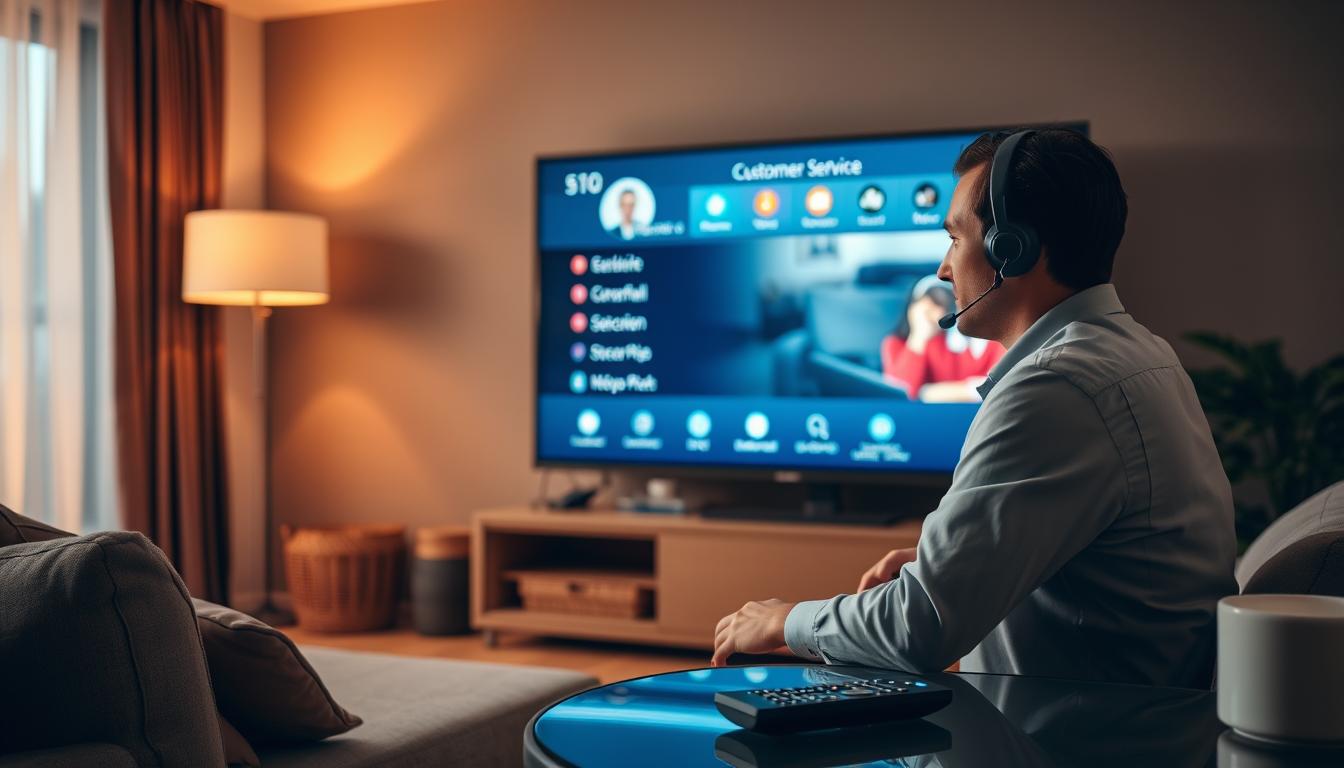
When to Contact Support about IPTV Stops Working After Payment Confirmation
Contact support immediately if:
– 2 hours pass with no service after payment.
– You tried all methods above.
– The provider’s website is down for a long time.
What to tell them: Send your payment receipt (transaction ID) and your username. Be clear and polite. Ask: “Can you check the activation status of my account?”
Real User Case Study: IPTV Stops Working After Payment Confirmation
Problem: “Mark” paid for 6 months. His Tivimate app said “Playback Error”. He waited 1 hour. Nothing.
My Diagnosis: Likely ISP block after new subscription signal.
Solution Path:
1. He restarted device and router (Method 1). No fix.
2. He cleared Tivimate cache (Method 2). No fix.
3. He installed a VPN, connected, and opened Tivimate. It worked instantly.
Lesson: His internet provider flagged the renewal as “new IPTV traffic” and blocked it. The VPN was the permanent fix.
FAQ: Common Questions About IPTV Stops Working After Payment Confirmation
Q: How long should I wait after paying?
A: Wait 15-30 minutes. If nothing, start troubleshooting.
Q: Is this a scam?
A> Not always. Scams happen, but activation delays are very common with real providers too.
Q> Do I need to get a new app?
A> No. The app is just a video player. The problem is your account or connection.
Q> Will I lose my favorites?
A> If you only “Clear Cache,” no. If you “Clear Data,” yes. Always back up your playlist.
Conclusion: Fixing IPTV Stops Working After Payment Confirmation
This problem is frustrating but usually simple. Start with a full restart. Then clear your app’s cache. Finally, use a VPN to bypass blocks.
The core issue is a broken signal between payment and activation. Your job is to rebuild that signal path. Follow the steps in order. Be patient. You will fix it.
For lasting peace of mind, use a VPN and choose your provider carefully. Good luck!