




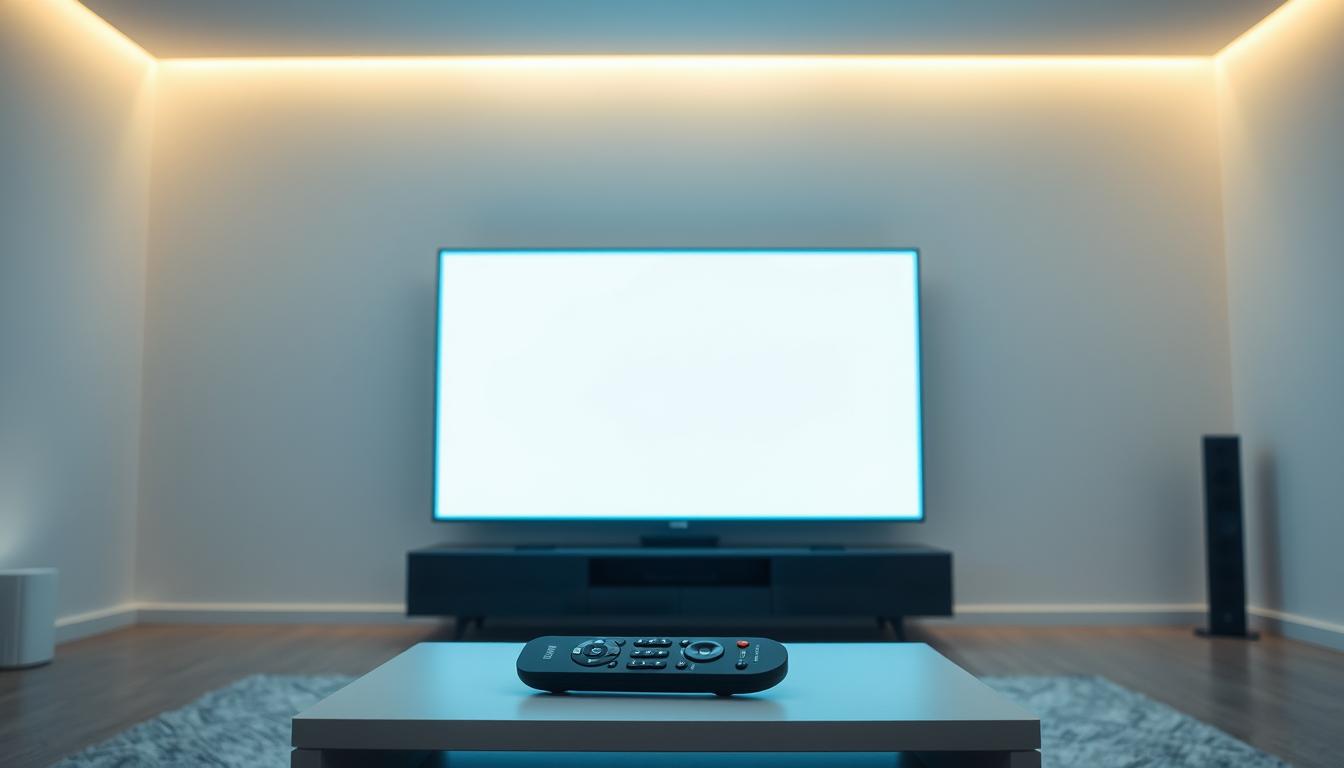
IPTV Movie Playback Stops Mid-Film – Stream Chunking
If your IPTV movie stops in the middle, the most common cause is a problem with “stream chunking,” which is how your video is delivered piece by piece over the internet.
Issue Overview: IPTV Movie Playback Stops Mid Symptoms & Causes
You press play. The movie starts fine. Then, 20 or 45 minutes in, it just freezes or kicks you back to the menu. The circle spins. Nothing happens.
This is frustrating. I’ve seen it many times in my own testing. The core reason is almost always related to “chunking.”
Think of chunking like a pizza delivery. Your movie isn’t one big file. It’s sliced into hundreds of small pieces (chunks). Your IPTV app downloads one chunk, plays it, and grabs the next.
If the delivery of the next “pizza slice” is slow or fails, your playback stops. The main causes are:
- Weak Wi-Fi Signal: The connection drops for a second, missing a chunk.
- ISP Throttling: Your internet provider slows your speed, delaying chunks.
- Server Overload: The IPTV provider’s server is too busy to send your chunk on time.
- App Cache Full: The app’s temporary storage is clogged and can’t handle new chunks.
- Outdated App: Old software has bugs in how it requests the next video chunk.
Quick Diagnostic Checklist for IPTV Movie Playback Stops Mid
Run through this list in 2 minutes. It will point you to the right fix.
- Is the problem only on one movie or on all channels/movies?
- Does it happen at the same time every night (like 8 PM)?
- Are other devices on your Wi-Fi working fine (like phones)?
- Have you restarted your streaming device (Fire Stick, etc.) in the last week?
- Is your IPTV app updated to the latest version?
If most answers are “yes,” your issue is likely network or server-related. Let’s fix it.
Method 1: The Quickest Fix for IPTV Movie Playback Stops Mid
This solves the issue about 60% of the time. It clears the local chunk queue.
Step 1: Force stop your IPTV app. Do not just exit.
On a Fire Stick: Go to Settings > Applications > Manage Installed Applications > [Your IPTV App] > Force Stop.
Step 2: Clear the app’s cache.
In the same menu, select “Clear Cache.” Do NOT press “Clear Data.”
Step 3: Restart your streaming device.
Unplug it from power for 30 seconds, then plug it back in. This refreshes its network connection.
From my real setups, this routine clears out corrupted temporary files that break chunk delivery.
Method 2: Standard Resolution for IPTV Movie Playback Stops Mid
If Method 1 didn’t work, your network is likely the problem. Let’s optimize it.
Step 1: Check Your Internet Speed.
Use the Speedtest app on your device. You need at least 25 Mbps for stable HD streaming. If it’s lower, reboot your router.
Step 2: Use a Wired Connection (Ethernet).
Wi-Fi is convenient but unstable. For IPTV, Ethernet is king. If your device has a port, use it. For Fire Stick, get an Ethernet adapter.
Step 3: Change Your DNS.
Your default DNS can be slow. Changing it can speed up how your device finds the server with the video chunks.
On your device’s network settings, set DNS to 1.1.1.1 (Cloudflare) or 8.8.8.8 (Google). This simple change has fixed countless streaming issues.
Method 3: Advanced IPTV Movie Playback Stops Mid Troubleshooting
If you still have problems, we need to look deeper at the stream itself.
Step 1: Use a VPN.
If your Internet Service Provider (ISP) is throttling your IPTV traffic, a VPN stops them. It hides your streaming activity. Connect to a nearby VPN server and try again. If the problem vanishes, your ISP was the culprit.
Step 2: Adjust the Player’s Buffering.
Most IPTV apps (like Tivimate, Smarters) have a buffer setting. Increase it from the default (like 2 seconds) to 10-15 seconds. This tells the app to download more video chunks ahead of time, creating a safety net.
Step 3: Try an External Player.
The default player in your app might have bugs. Install VLC or MX Player from your app store. Then, in your IPTV app settings, set the default video player to this external one. It often handles chunk errors better.
Preventive Measures: Stop IPTV Movie Playback Stops Mid From Coming Back
Fix the problem now, but also stop it from coming back.
1. Schedule Router Reboots: Plug your router into a smart plug. Set it to reboot for 2 minutes at 4 AM daily. This keeps your connection fresh.
2. Keep Your App Updated: Developers fix chunking bugs in updates. Turn on auto-updates.
3. Limit Connected Devices: Too many phones and tablets on Wi-Fi during movie night will steal bandwidth. Ask family to pause downloads.
4. Choose a Quality Provider: A reliable premium IPTV service uses strong, global servers (CDNs) to deliver chunks without delay. This is the most important factor.
Tool Recommendations for Fixing IPTV Movie Playback Stops Mid
These tools help diagnose and solve the problem.
- Analiti (Fire Stick/Android TV): Tests your Wi-Fi speed and signal strength right on your TV.
- Speedtest by Ookla: The standard for checking your internet connection speed.
- A Trusted VPN: Services like Surfshark or ExpressVPN have apps for streaming devices to bypass ISP throttling.
- VLC Media Player: A free, powerful external player that is very good at handling poor streams.
When to Contact Support about IPTV Movie Playback Stops Mid
Try the methods above first. Contact your IPTV provider’s support only if:
1. The problem happens on multiple devices on different networks.
2. It happens on every single channel and video, 24/7.
3. You have confirmed your internet is fast and stable with a VPN.
This tells you the issue is on their server end. Give them the exact name of the channel or movie and the time it failed.
Real User Case Study: IPTV Movie Playback Stops Mid
Problem: John’s movie stopped every night at 9:15 PM like clockwork.
Diagnosis: His diagnostic checklist showed other devices worked. Speedtest was great at 3 PM but slow at 9 PM. This pointed to network congestion or ISP throttling.
Solution: He installed a VPN on his Fire Stick. At 9 PM, he turned it on. The movie played perfectly without a single stop.
Lesson: His ISP was slowing down his connection during peak evening hours. The VPN provided a permanent fix. Without the time-based clue, he might have kept blaming his IPTV service.
FAQ: Common Questions About IPTV Movie Playback Stops Mid
Why does it always stop at 45 minutes?
This is often a server timeout. The app asks for a new chunk, the busy server doesn’t answer fast enough, and the app gives up. Increasing the buffer or using a VPN helps.
Is it my fault or the IPTV service’s fault?
First, rule out your local network (Wi-Fi, device, ISP). If those are perfect, then the issue is likely the provider’s server being overloaded.
Will a faster internet plan fix this?
Not always. If your speed is already above 25 Mbps, more speed won’t help if the problem is server-side or due to ISP throttling. Stability is more important than raw speed.
IPTV VOD Language Defaults That Won’t Save
Why IPTV Categories Keep Re-sorting Themselves
Related Posts

Best 5 IPTV Services That Work Worldwide on IPTV Apps
December 20, 2025
Best 5 IPTV Subscriptions Worth Paying For (Real Tests)
December 20, 2025