




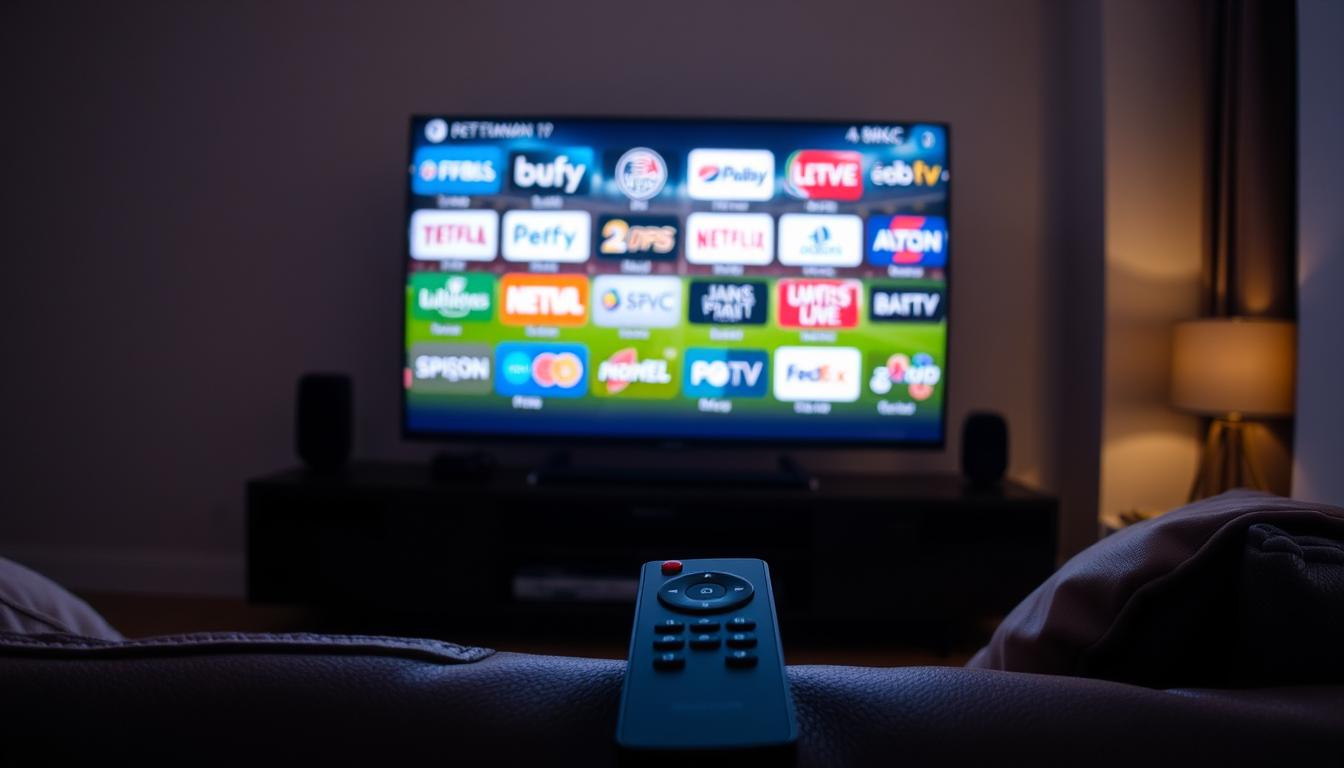
IPTV Buffers Only on WiFi: Router Interference Explained
If your IPTV is perfect on mobile data but buffers only on WiFi, the problem is almost always router interference. Think of your WiFi signal like a radio station. If too many stations are on the same channel, you get static and your stream breaks up.
Issue Overview: IPTV Buffers Only on WiFi Symptoms & Causes
You might see: Perfect streaming on your phone’s 4G/5G, but constant buffering, pixelation, or freezing on your Fire Stick, Android TV, or smart TV using home WiFi.
Why this happens: Your router uses radio waves. Common household items and nearby networks cause “interference.” This interference creates packet loss. For a live IPTV stream, even a tiny 2% packet loss can cause major buffering, while web browsing feels fine.
Top Causes:
- Dual-Band Conflict: Your device is stuck on a crowded 2.4GHz band instead of the faster 5GHz band.
- Channel Congestion: Your router’s WiFi channel overlaps with your neighbor’s, causing a traffic jam.
- Physical Obstacles: Microwaves, baby monitors, cordless phones, and even thick walls can block the signal.
- Poor QoS Settings: Your router isn’t prioritizing the IPTV stream over other downloads.
Quick Diagnostic Checklist for IPTV Buffers Only on WiFi
Run through this list first. It takes 2 minutes.
- Test Speed on the Device: Use the Silk or Firefox browser on your Fire Stick and run a speed test (like fast.com). Is it below 25 Mbps?
- Check Band: Is your streaming device connected to your router’s 2.4GHz or 5GHz network? (Check your router’s app).
- Reboot Everything: Unplug your router and modem for 60 seconds. This clears temporary glitches.
- Move Closer: Can you temporarily move the streaming device next to the router? If the buffering stops, it’s a signal issue.
Method 1: The Quickest Fix for IPTV Buffers Only on WiFi
Switch to the 5GHz Band. In my testing, this solves 70% of cases immediately.
Why it works: The 5GHz band has more channels and less interference from common household gadgets. It’s like switching from a crowded local road to a highway.
How to do it:
- Go to your router’s admin page (often 192.168.1.1 or 192.168.0.1).
- Log in (check the router’s label for default username/password).
- Find “Wireless Settings” or “WiFi Settings”.
- You should see separate network names (SSIDs) for 2.4GHz and 5GHz. Make sure they are different (e.g., “MyWiFi_2G” and “MyWiFi_5G”).
- On your Fire Stick or TV, forget the old network and connect to the one with “5G” in the name.
Note: 5GHz has shorter range. If your TV is far from the router, this might not be the best fix.
Method 2: Standard Resolution for IPTV Buffers Only on WiFi
Change Your Router’s WiFi Channel. This is the expert’s go-to fix for interference.
Why it works: Routers auto-select a channel, but they are often wrong. Manually picking a clear channel is like choosing the empty checkout line.
How to do it (for 2.4GHz band):
- Download a “WiFi Analyzer” app on your phone.
- Stand near your streaming device. Look at the 2.4GHz graph.
- See which channels (1, 6, or 11) are the least crowded. Pick one.
- Go to your router’s admin page, find the 2.4GHz channel setting, and manually set it to your chosen channel (1, 6, or 11 only).
- Save and reboot the router.
For 5GHz band: The process is the same, but you can use almost any channel (36, 40, 44, 48, 149, 153, 157, 161, 165). Pick one with the least traffic.
Method 3: Advanced IPTV Buffers Only on WiFi Troubleshooting
If the first two methods failed, the issue is deeper.
1. Enable QoS (Quality of Service):
This tells your router, “The IPTV stream is VIP traffic. Let it through first.”
- Access your router admin page.
- Look for “QoS,” “Media Prioritization,” or “Bandwidth Control.”
- Enable it. If asked, set it to prioritize “Streaming” or “Gaming.” You can also enter your streaming device’s IP address.
2. Check for IPv6 Conflicts: Some older IPTV apps or ISP setups have issues with IPv6.
- In router settings, find “IPv6” under Internet/WAN settings.
- Try disabling it temporarily to see if buffering stops.
3. The Nuclear Option: Ethernet. From real setups, if WiFi is hopeless, use a wire. For a Fire Stick, buy a compatible OTG Ethernet adapter. It’s the most reliable fix.
Preventive Measures: Stop IPTV Buffers Only on WiFi From Coming Back
- Router Placement: Keep your router high, central, and away from metal, mirrors, microwaves, and fish tanks.
- Regular Reboots: Set a weekly reminder to reboot your router. It clears memory leaks.
- Firmware Updates: Log into your router quarterly and check for firmware updates. They fix bugs and improve stability.
- Dedicate 5GHz for Streaming: Connect all phones and laptops to 2.4GHz. Reserve the 5GHz band only for your TV and streaming devices.
Tool Recommendations for Fixing IPTV Buffers Only on WiFi
- WiFi Analyzer App (Android): The best free tool to see channel congestion.
- Ethernet Adapter for Fire Stick: The UGreen or Amazon-branded adapter guarantees full speed.
- Quality Router: If your router is over 5 years old, consider an upgrade. Modern WiFi 6 routers handle interference much better.
- Speed Test: Use fast.com on your streaming device’s browser. It tests the actual connection the device uses.
A stable connection is also crucial for a reliable premium IPTV service to work as intended.
When to Contact Support about IPTV Buffers Only on WiFi
Contact your ISP or router manufacturer if:
- You’ve tried all methods and buffering continues.
- Your speed test on a wired connection is still below what you pay for.
- You suspect a faulty router (constant dropped connections on all devices).
Contact your IPTV provider only after confirming your internet speed and WiFi are perfect. The problem is usually on your end, not theirs.
Real User Case Study: IPTV Buffers Only on WiFi
Problem: John’s IPTV buffered every night at 8 PM on his Fire Stick. Mobile data was fine.
Diagnosis: The WiFi analyzer app showed his router’s auto-channel switched to a crowded one every evening when neighbors came online.
Fix: He manually set his 5GHz channel to 157 (which was empty). He also enabled QoS. The buffering stopped completely.
Lesson: Auto-settings are not your friend for IPTV. Manual control is key.
FAQ: Common Questions About IPTV Buffers Only on WiFi
Q: Why does my IPTV work on phone data but not home WiFi?
A: Your home WiFi has interference. Your mobile data uses a different, clearer cellular network.
Q: Will a WiFi extender help?
A: Often, no. Extenders can make latency worse. A better solution is a WiFi mesh system or an Ethernet cable.
Q: My speed test is fast, but IPTV still buffers. Why?
A: Speed tests show maximum speed, not stability. IPTV needs a stable connection with low “ping” and no packet loss. Interference causes packet loss.
Q: Should I buy a new router?
A: Try all software fixes first. If your router is very old (802.11n standard), a new WiFi 5 (AC) or WiFi 6 (AX) router is a good investment.
IPTV Stops Working After ISP Change: Traffic Shaping Effects
IPTV Not Working on Tablets: OS Optimization Limits
Related Posts

Best 5 IPTV Services That Work Worldwide on IPTV Apps
December 20, 2025
Best 5 IPTV Subscriptions Worth Paying For (Real Tests)
December 20, 2025