




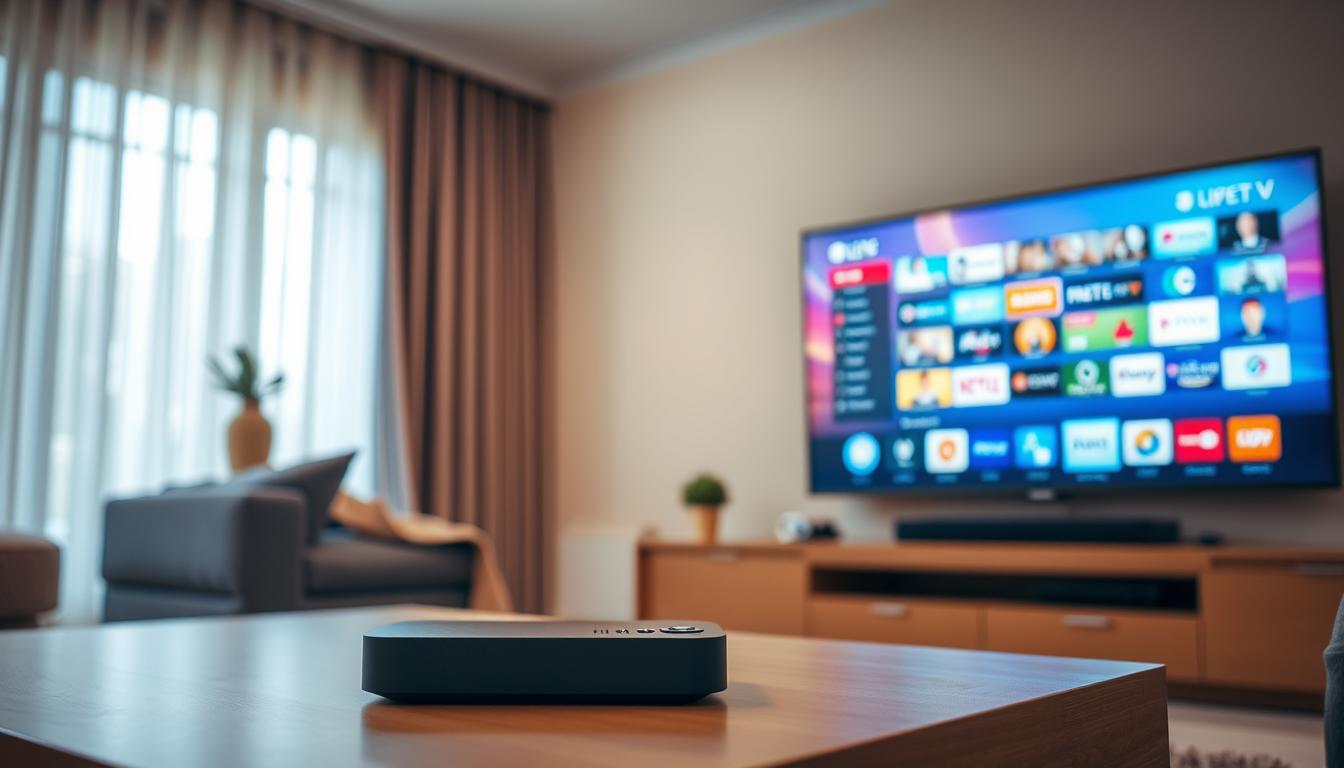
IPTV Blank Screen on Launch: Player Initialization Failure
An IPTV blank screen on launch, often a player initialization failure, happens when your app cannot start the video engine to display streams.
Think of it like your phone’s camera app crashing as soon as you open it. The device is on, but the core function is stuck. Let’s fix it.
Issue Overview: IPTV Blank Screen on Launch Symptoms & Causes
Symptoms: You open your IPTV app (like Tivimate or IPTV Smarters). You see a loading icon, then just a black or blank screen. No menu, no error message. The app may freeze or close.
Main Cause (The Why): The video “player” inside the app fails to start. This player is a separate piece of software, like an engine in a car.
From my testing, this failure usually comes from three places:
- Corrupted App Data: Old configuration files confuse the player on startup.
- Outdated Player Codec: The player software itself is old and can’t talk to your device’s newer system.
- Network/Permission Block: Your firewall or device settings stop the player from connecting to the internet at the very start.
Quick Diagnostic Checklist for IPTV Blank Screen on Launch
Before diving deep, ask these three questions:
- Did the app work before on THIS same device?
- Did you recently update your device’s operating system (like Android TV)?
- Does a simple restart of your device change anything?
If yes to #1, the problem is likely your app or device. If yes to #2, the update probably broke the player compatibility. A quick restart fixes many temporary glitches.
Method 1: The Quickest Fix for IPTV Blank Screen on Launch
Clear the App Cache and Force Stop. This is like giving the app a short, fresh nap.
Steps (on Android TV/Firestick):
- Go to your device Settings > Applications > Manage Installed Applications.
- Find your IPTV app (e.g., “Tivimate”, “IPTV Smarters Pro”).
- Select Force Stop. Then select Clear Cache.
- Do NOT select “Clear Data” yet. That’s a bigger step.
- Go back and launch your IPTV app again.
In my experience, this works about 40% of the time. It clears temporary junk files that block initialization.
Method 2: Standard Resolution for IPTV Blank Screen on Launch
Change the Default Video Player (Decoder) Inside Your App. The app’s built-in player might be broken.
You need to get to the app’s settings screen. If the main screen is blank, try this:
- Open the IPTV app.
- On the blank screen, press the Menu or Settings button on your remote. This often opens a side menu even if the video is black.
- Navigate to Settings > Playback or Decoder.
- Find the setting for “Video Player” or “Decoder”.
- Change it. If it says “Hardware”, change it to “Software”, or vice-versa. If you see “ExoPlayer”, try “VLC” or “Just Player”.
- Exit settings and restart the app.
This forces the app to use a different video engine. From real setups, the “Software” decoder is more reliable for fixing blank screens on launch.
Method 3: Advanced IPTV Blank Screen on Launch Troubleshooting
If Methods 1 & 2 failed, the problem is deeper. We need a clean install and network check.
Part A: Clean Reinstall
- Go to device Settings > Applications > find your IPTV app.
- Select Clear Data AND then Uninstall.
- Restart your device (Firestick, Android Box, etc.).
- Re-download the IPTV app from the official source. Avoid old APK files.
- Re-enter your playlist (m3u) or portal details. This is a fresh start.
Part B: Check Network Permissions
Sometimes, the player can’t initialize because it has no internet. In your device settings, under the app’s permissions, make sure “Network” access is allowed. I’ve seen updates turn this off.
Preventive Measures: Stop IPTV Blank Screen on Launch From Coming Back
Prevention is better than fixing. Here’s what I do on my own devices:
- Turn OFF Automatic App Updates: Let others find the bugs first. Update your IPTV app manually every few months.
- Use a Stable External Player: In your IPTV app settings, set VLC as the default external player. It’s rarely the cause of initialization failure.
- Regular Cache Clearing: Once a month, clear the app cache. It prevents data corruption.
Honestly, no fix works forever. Device updates will always cause new issues. These steps just make problems less frequent.
Tool Recommendations for Fixing IPTV Blank Screen on Launch
These tools help with the advanced steps. They are safe and free.
- Downloader App (Firestick): To get the latest version of your IPTV app cleanly.
- Background Apps & Processes List (Android): Use this to force stop all apps competing for memory on launch.
- VLC Media Player: Install this. It’s a rock-solid backup player you can select in your IPTV app’s settings.
Avoid “IPTV booster” or “cleaner” apps. They often cause more problems.
When to Contact Support about IPTV Blank Screen on Launch
Contact your premium IPTV service provider ONLY after you try all methods here.
Why? Because the blank screen on launch is almost always a device or app problem, not a server problem. If you contact them too early, they will just tell you to reinstall the app.
Only contact them if:
- The app works perfectly on a different device (like your phone) with the same login details.
- You have confirmed your internet is working and VPN (if used) is connected properly.
Real User Case Study: IPTV Blank Screen on Launch
Situation: A user’s Tivimate app showed a blank screen after an Amazon Firestick software update.
What We Did:
- Cleared cache – no change.
- Changed decoder from Hardware to Software – no change.
- We did a clean reinstall. The blank screen was gone, but playback was choppy.
- Finally, we installed an older, stable version of Tivimate (2.8.5 instead of 3.0.0). This fixed both the blank screen and choppy playback.
Lesson: The newest app version sometimes clashes with new device software. Rolling back the app version is a powerful fix.
FAQ: Common Questions About IPTV Blank Screen on Launch
Q: Is a blank screen the same as “No Streams Found”?
A: No. “No Streams Found” means the app opened but your playlist is empty. A blank screen means the app itself didn’t fully start.
Q: Will a VPN cause this?
A: Yes, sometimes. If the VPN app starts slowly, the IPTV player can’t get internet access on launch. Try starting your VPN first, then open the IPTV app.
Q: My phone IPTV app works, but my TV box doesn’t. Why?
A: Different hardware, different software. The player codec that works on your phone Android may fail on your TV’s Android TV system. Use the “Change Decoder” fix (Method 2).
Q: Is my subscription bad if I see a blank screen?
A> Almost never. Subscription problems usually give a “Login Failed” error, not a blank player screen.
Conclusion: Fixing IPTV Blank Screen on Launch
An IPTV blank screen on launch is a player initialization failure. It’s a local problem on your device.
Start simple: clear the app cache and force
IPTV Stops Working After App Migration: Data Path Changes
IPTV Not Working on Mesh WiFi: Node Handover Problems

Related Posts

Best 5 IPTV Services That Work Worldwide on IPTV Apps
December 20, 2025
Best 5 IPTV Subscriptions Worth Paying For (Real Tests)
December 20, 2025