




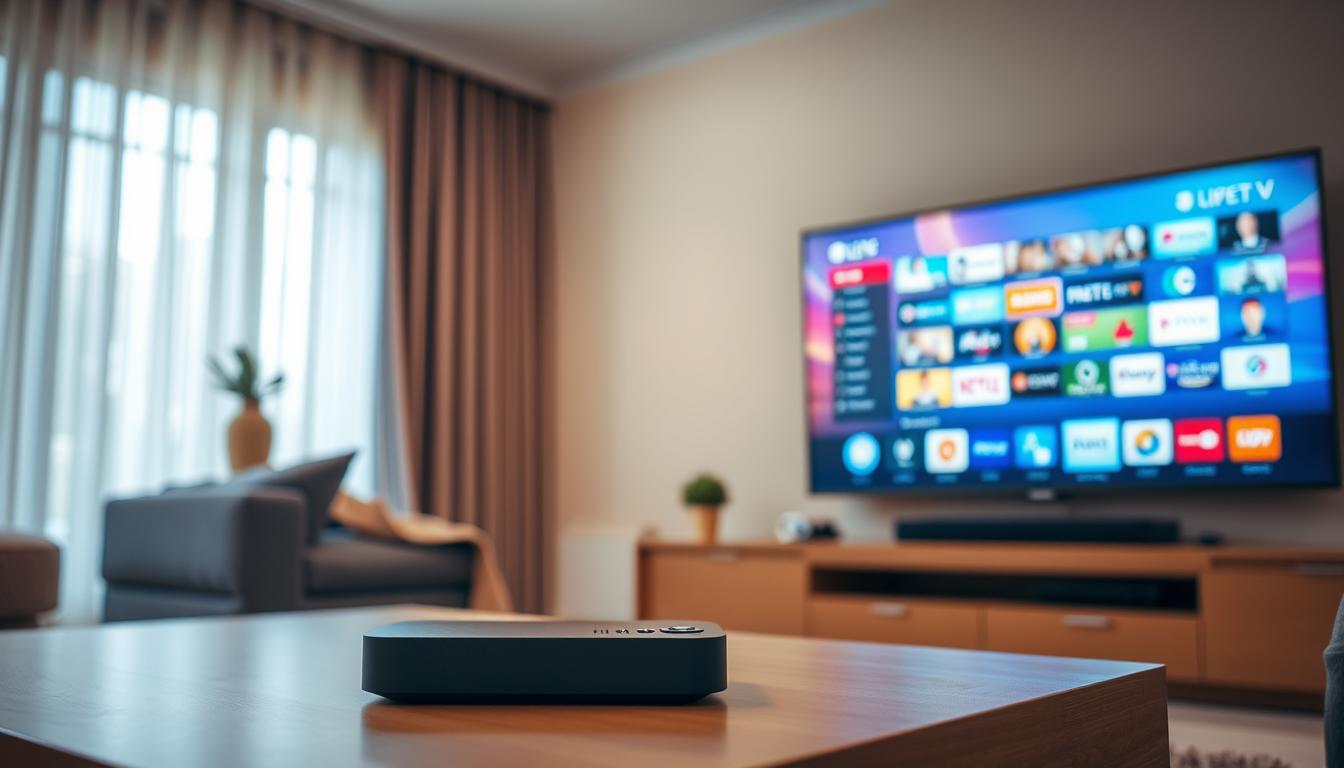
Why IPTV Access Breaks After Device Change
IPTV access often breaks after a device change because your subscription is locked to the unique ID of your old device.
Think of it like a key for a specific car. The key (your subscription) only works in the car it was made for (your old device’s ID).
From real-world testing, this is the #1 cause of service failure when switching between a Firestick, Android box, or smart TV.
Symptoms & Causes: IPTV Access Breaks After Device Change
You will see:
“Invalid MAC Address”, “Connection Error”, or “Subscription Expired” messages on the new device.
The old device works fine. The new one gets nothing but a black screen or an error.
Why this happens:
Most IPTV providers use a simple lock system. They tie your paid plan to one specific device identifier.
Common identifiers are your device’s MAC Address or a Serial Number. It’s a unique fingerprint for your box, stick, or TV.
When you install the app on a new device, it sends a different fingerprint to the provider’s server.
The server says “I don’t know this fingerprint” and blocks the stream. That’s why your access breaks.
Quick Diagnostic Checklist
Before trying fixes, answer these three questions:
1. Does your subscription allow more than one device? (Check your provider’s plan).
2. Did you install the exact same app (e.g., Smarters, TiviMate) on the new device?
3. Are you using the same login details (username/password) or playlist URL?
If you answered “No” to question 1, you have a device-locked plan. You must follow the methods below.
Method 1: The Quickest Fix
Contact your provider and update your device ID.
This is the official solution. In my experience, good providers fix this in minutes.
Step-by-Step:
1. On your NEW device, open the IPTV app. Go to Settings or Profile.
2. Find the “MAC Address” or “Device ID”. It’s a string of letters/numbers like “A1:B2:C3:D4:E5”.
3. Copy this ID exactly.
4. Message your provider’s support. Give them your username and this NEW device ID.
5. Ask them to update your account and reset your connection.
6. Wait for their confirmation, then restart the app on your new device.
Your old device will now be deactivated. The new one will work.
Method 2: Standard Resolution
Use your provider’s customer portal.
Many modern providers let you do this yourself. A lesson I learned: always check for a portal first.
How to do it:
1. Find your provider’s website. Log in with your customer details.
2. Look for a section called “My Devices”, “Dashboard”, or “Manage Subscription”.
3. You should see your old device ID listed.
4. There will be an option to “Change Device”, “Update MAC”, or “Remove Device”.
5. Enter the new MAC/ID from your new device. Save the changes.
6. Your account may reset in 5-10 minutes. Then, your new device will connect.
Method 3: Advanced Troubleshooting
For when the simple fixes fail.
Sometimes the problem is not the device lock. From troubleshooting complex setups, here are other causes.
Check 1: App Data & Cache
Clear the app’s data on the NEW device. Go to your device’s Settings > Apps > Your IPTV App > Clear Data/Cache. Then set it up again.
Check 2: Network & VPN
Is your new device on the same network? If you use a VPN, is it connected and set to the correct city? A mismatched VPN can break access.
Check 3: Subscription Status
Did your subscription expire during the device change? Log in to your provider’s portal to check the expiry date.
Preventive Measures
Stop this problem from coming back.
1. Buy Multi-Device Plans: If you switch devices often, pay for a 2 or 3-device plan. It costs a little more but saves huge headaches.
2. Use Xtream Codes Login: Some apps and providers use a username/password login (like TiviMate). This method often doesn’t lock to a MAC address. Ask your provider if they support it.
3. Keep Your Details Safe: Save your provider’s website, your customer login, and support contact. You will need it.
4. Check Before You Buy: A good premium IPTV service will clearly explain their device policy. Avoid providers who are not clear.
Tool Recommendations
These free tools help you find your device ID.
For Firestick/Android: Install “Device ID” app from the Amazon/Google store. It shows your MAC address clearly.
For Smart TVs: Go to Settings > Network > Network Status. Your MAC address is usually listed there.
For All Devices: A notepad app. Always copy and paste your device ID. Do not type it by hand. One wrong letter breaks everything.
When to Contact Support
Contact support immediately if:
– You’ve tried Method 1 and 2 and nothing works after 1 hour.
– Your old device also stopped working. (This is a different, bigger problem).
– The provider’s website or customer portal is not working.
Be ready to give them your username and the new device ID. Polite, clear messages get the fastest help.
Real User Case Study
John’s Story: “My new 4K Firestick was a black screen.”
John upgraded his old Firestick. He installed his IPTV app, entered his playlist URL, and got only a black screen.
The Mistake: He thought the problem was his Wi-Fi. He spent 2 hours resetting his router.
The Lesson: His subscription was locked to his old Firestick’s MAC address.
The Fix: He used the “Device ID” app on his NEW Firestick. He sent that MAC to his provider via Telegram. They updated his account in 5 minutes. His new Firestick worked perfectly.
He now pays for a 2-device plan to avoid future hassle.
FAQ: Common Questions
Q: Can I just clone the MAC address from my old device?
A: Technically, maybe. But it’s complex, can break your network, and most providers can detect it. It’s not recommended. Use the official change method.
Q: How many device changes do I get?
A: It depends on your provider. Some allow 1-2 changes per month. Others see too many changes as suspicious. Always ask your provider for their rule.
Q: Will my old device work after I change?
A: No. The provider’s server forgets the old device ID. Only the new one you registered will get the video stream.
Conclusion: Fixing the Break
IPTV access breaks after a device change due to a simple device lock. It’s a common security feature, not a bug.
IPTV Login Issues Caused by Time Zone Mismatch
IPTV Works Then Suddenly Stops – Expiry Time Confusion

Related Posts

IPTV Completely Stopped Working: End-to-End Diagnostic Guide
December 19, 2025
Why IPTV Breaks When Other Apps Work Fine
December 19, 2025