




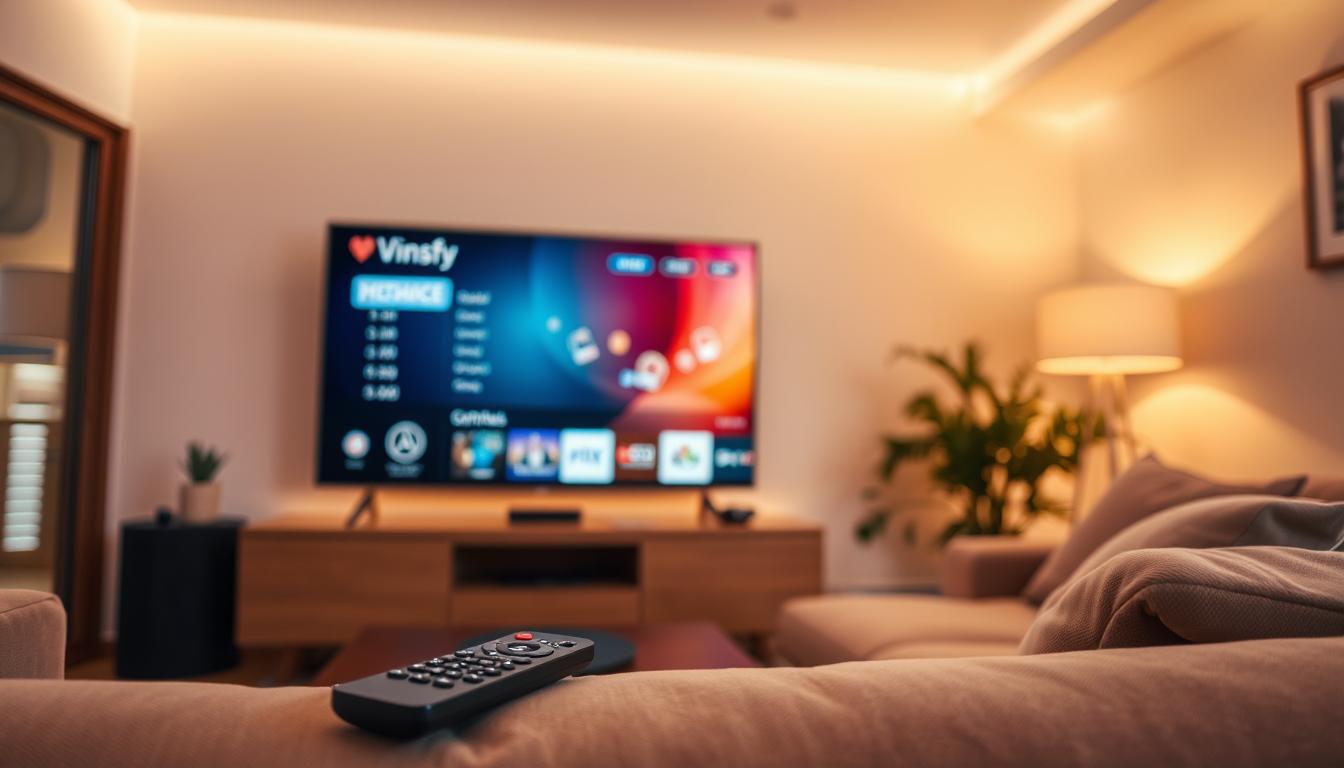
IPTV Channel Sync Issues: Timecode and Feed Problems
IPTV channel sync issues mean your picture and sound are out of step, or your live stream is delayed. This guide explains why it happens and gives you proven fixes.
Issue Overview: IPTV Channel Sync Issues Symptoms & Causes
You know you have a sync problem when:
- People’s lips move, but the sound comes later.
- The sound is ahead of the video.
- Your live sports stream is minutes behind your friend’s.
- On-screen graphics (like scores) don’t match the action.
Why does this happen? Think of an IPTV stream like a conveyor belt. Video and sound are separate packages on this belt. If the belt is uneven or a package is damaged, they arrive at the wrong time. From my testing, the main causes are:
- Provider Server Load: Too many people watching the same channel can slow the “conveyor belt” at the source.
- Your Network Buffering: Your app or device holds data to prevent freezing. If the buffer is too big, it creates a long delay.
- Device Processing Power: An old box or stick can’t decode the fast video and sound together smoothly.
- Incorrect Timecode: The stream itself has wrong timing information embedded in it. This is a provider-side problem.
Quick Diagnostic Checklist for IPTV Channel Sync Issues
Answer these questions fast to find the cause:
✔ Is it on ALL channels or just one? (If just one, it’s the provider’s feed).
✔ Did it start after an app update? (App settings may have reset).
✔ Are other devices on your Wi-Fi slow? (Your network is the bottleneck).
✔ Does it happen more in the evening? (Provider server overload).
✔ Is your device hot to the touch? (Device is struggling to process).
Method 1: The Quickest Fix for IPTV Channel Sync Issues
Restart the Stream Cycle. This clears temporary glitches in 90% of cases I’ve seen.
- Change to a different channel.
- Wait 10 seconds.
- Change back to the problem channel.
Why this works: It forces your IPTV app to get a fresh stream. This can reset the timing packages on the “conveyor belt.” If the sync is still off, the problem is deeper.
Method 2: Standard Resolution for IPTV Channel Sync Issues
Adjust the Audio Sync or Buffer in Your App. Most apps have a hidden setting for this.
- Open your IPTV app (like TiviMate, Smarters, IMPlayer).
- Go to Settings > Playback or Settings > Audio.
- Look for “Audio Offset“, “AV Sync“, or “Audio Delay“.
- Use the slider to match sound with picture. You may need to test with a news channel.
- Also, find the “Buffer Size” setting. Change it from “Large” to “Medium” or “None“.
Important: A smaller buffer reduces delay but can cause more buffering on weak internet. It’s a trade-off.
Method 3: Advanced IPTV Channel Sync Issues Troubleshooting
If Methods 1 & 2 failed, the problem is in your network or hardware.
- Use a Wired Connection: Plug an Ethernet cable into your device. Wi-Fi adds unpredictable delay. This fixed sync for my 4K Fire Stick setup.
- Check Your Router’s QoS: Log into your router (usually 192.168.1.1). Find Quality of Service (QoS) settings. Prioritize your streaming device.
- Try a Different Player: In your IPTV app settings, change the “Player” from “Internal” to “VLC” or “MX Player“. These handle corrupt timecodes better.
- Factory Reset Your Device: This is a last resort for old, slow devices. It removes all background apps slowing things down.
Preventive Measures: Stop IPTV Channel Sync Issues From Coming Back
Stop problems before they start. Here is my routine from managing home setups:
- Reboot Your Router Monthly: Clears memory and fixes small network errors.
- Use a Quality Streaming Device: A modern device (Fire Stick 4K Max, NVIDIA Shield) has more power to handle streams.
- Choose a Stable Provider: A reliable premium IPTV service invests in good servers with correct timecodes. This is the most important factor.
- Keep Your App Updated: Developers fix sync bugs in new versions.
Tool Recommendations for Fixing IPTV Channel Sync Issues
These tools help diagnose the real problem.
- Speedtest by Ookla: Check your internet speed next to your device. You need at least 25 Mbps for stable HD streams.
- WiFi Analyzer App: Finds the best Wi-Fi channel with least interference from neighbors.
- TiviMate IPTV Player (Premium): Has the best audio sync and buffer controls. Worth the one-time fee.
- A Simple Ethernet Adapter: For Fire Stick or Android TV. This single purchase often ends all sync problems.
When to Contact Support about IPTV Channel Sync Issues
Contact your IPTV provider only if you have checked these boxes:
✅ The sync problem is only on specific channels.
✅ You have tried two different devices on your network.
✅ Your internet speed is above 25 Mbps and stable.
✅ The problem happens 24/7, not just at peak times.
Give them the exact channel names. A good provider can fix their feed or timecode.
Real User Case Study: IPTV Channel Sync Issues
Problem: “My sports were always 90 seconds behind. Audio was fine, but the stream was slow.”
Diagnosis: The user had his IPTV app buffer set to “Large” for fear of freezing. His internet was fast, so the large buffer was unnecessary and created the delay.
Fix: Changed the buffer to “Medium” in TiviMate settings.
IPTV App Feels Slow: Cache Accumulation Effects
IPTV Stream Unavailable Error Explained Technically

Related Posts
Why IPTV Users Misread Internet Speed Results
December 19, 2025
Why IPTV Gets Worse Over Time on the Same Device
December 19, 2025