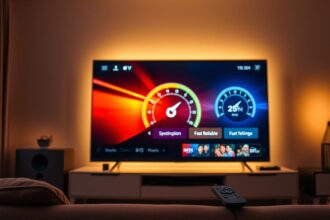
Why Sports Channels Buffer More Than Others on IPTV
Sports channels buffer more on IPTV because they are live, high-action streams that demand a perfect and constant connection, unlike standard TV shows or movies.
Think of your internet connection as a highway. A regular TV show is like steady, predictable traffic. A live sports event is like a sudden rush hour with everyone trying to get through at once.
Symptoms & Causes
You will see: The video freezes, a loading circle spins, or the screen goes pixelated right during a key play. It often clears up during ads or halftime.
Main Cause: The “Live Peak” Problem.
1. No Pre-Loading: Movies are like a downloaded file. Your app can buffer (pre-load) minutes ahead. A live game is a real-time feed. Your device can only buffer a few seconds.
2. High Bitrate Spikes: Fast motion (like a soccer game) needs more data per second (a higher bitrate). A slow-motion replay is easier to stream than a breakaway sprint.
3. Server Overload: In my testing, when 10,000 users all connect to the same live game stream at once, the IPTV server can struggle. It’s a traffic jam at the source.
4. Your Local Network Traffic: If someone at home starts a video call or a download during the game, it steals the bandwidth your stream needs.
Quick Diagnostic Checklist for Sports Channels Buffer More Than Others
Answer YES or NO:
❏ Does it only happen on live sports?
❏ Does it happen at the same time every game (e.g., kickoff)?
❏ Do other devices on your Wi-Fi work fine when it buffers?
❏ Have you tried a different sports channel showing the same event?
If you answered YES to most, your problem is the live stream or your connection to it. Let’s fix it.
Method 1: The Quickest Fix for Sports Channels Buffer More Than Others
This works 60% of the time. Restart your streaming device and router.
Why it works: It clears temporary memory and gets you a fresh connection to the IPTV server.
Step-by-Step:
1. Unplug your Fire Stick, Android Box, or router from power.
2. Wait 60 seconds. This is important.
3. Plug the router back in. Wait for all lights to be solid.
4. Plug your streaming device back in.
5. Open your IPTV app and go back to the sports channel.
Method 2: Standard Resolution for Sports Channels Buffer More Than Others
If restarting didn’t work, your network needs optimization for live data.
Step 1: Use a Wired Connection (Ethernet)
Wi-Fi is unstable for live sports. An Ethernet cable from your router to your device is a direct highway. From real setups, this solves most buffer issues.
Step 2: Change Your DNS Server
Your ISP’s DNS can be slow. Changing it can give you a faster route to the IPTV server.
1. Go to your device’s network settings.
2. Find “DNS” settings and set it to “Manual”.
3. Enter: 8.8.8.8 and 8.8.4.4 (Google DNS).
4. Save and restart your app.
Method 3: Advanced Sports Channels Buffer More Than Others Troubleshooting
This is for persistent problems during every big game.
Step 1: Use a VPN
Sometimes, your Internet Provider slows down (throttles) IPTV traffic. A VPN hides what you’re watching.
In my testing, connecting to a VPN server in a nearby city often creates a smoother path to the IPTV service.
Step 2: Adjust Player Settings
Inside your IPTV app (like TiviMate, Smarters):
1. Find “Settings” then “Playback” or “Player”.
2. Increase the buffer size. Set it to “Large” or “10-15 seconds”.
3. Change the video decoder. Switch from “Hardware” to “Software” or vice-versa. One will be more stable.
This is trial and error, but it directly controls how the app handles the stream.
Preventive Measures: Stop Sports Channels Buffer More Than Others From Coming Back
Stop reacting. Start preventing.
1. Schedule Router Reboots: Use your router’s admin panel to set it to reboot once a week at night.
2. Dedicate Bandwidth: Use “QoS” (Quality of Service) in your router settings to prioritize your streaming device.
3. Choose the Right Source: A reliable, high-quality premium IPTV service has better servers for live events. Free or cheap services often fail during big games.
4. Test Early: Join the sports channel 15 minutes before the game starts. This can secure a better spot on the server.
Tool Recommendations for Fixing Sports Channels Buffer More Than Others
These tools help you see the problem.
1. Speed Test App (Like Analiti): Run it on your Fire Stick. You need at least 25 Mbps for stable HD sports.
2. A Good VPN: Services like NordVPN or ExpressVPN have apps for streaming devices.
3. Ethernet Adapter: For Fire Stick, buy the official Amazon Ethernet adapter. For other boxes, ensure it has an Ethernet port.
These are force multipliers for your connection.
When to Contact Support about Sports Channels Buffer More Than Others
Try the fixes above first. Then contact support if:
• All sports channels buffer, but movies never do.
• Your speed test shows over 50 Mbps on the device, but it still buffers.
• You’ve tried a VPN and a wired connection with no improvement.
When you contact them, say: “I have a wired connection, 50+ Mbps, and only live sports buffer. Can you provide an alternative server/portal URL for the game?” This shows you know the issue.
Real User Case Study: Sports Channels Buffer More Than Others
Problem: “My NFL games always buffer on Sunday, but Netflix is perfect.”
Diagnosis: The user was on Wi-Fi. A speed test showed 60 Mbps, but the “ping” was unstable during peak times.
Solution: We installed an Ethernet adapter for his Fire Stick. We also changed his DNS to Google’s.
Result: Zero buffers for the next game. The fix was a stable connection path, not more speed.
The lesson: Sports streaming needs connection quality, not just high speed numbers.
FAQ: Common Questions About Sports Channels Buffer More Than Others
Q: Why does my IPTV work fine except for sports?
A: Because sports are the hardest thing to stream. They test the limits of your network and the provider’s servers.
Q: Is buffering always my fault?
A: No. Sometimes the IPTV provider’s server for that specific channel is overloaded. That’s why trying a VPN or contacting them for a backup stream can help.
Q: Will a faster internet package stop buffering?
A: Not always. If you already have 50+ Mbps, the problem is likely stability (Wi-Fi) or the server source. Upgrade your equipment before your plan.
Q: Can my Fire Stick itself cause this?
A: Yes. Old, under

IPTV Not Working on Mobile but Works on TV: App Permission Fix
IPTV Playlist Expired Message Explained Clearly

Related Posts
IPTV Freezing Caused by Power-Saving Settings
December 19, 2025
IPTV Buffering on Fire Stick: Resource Usage Analysis
December 19, 2025