




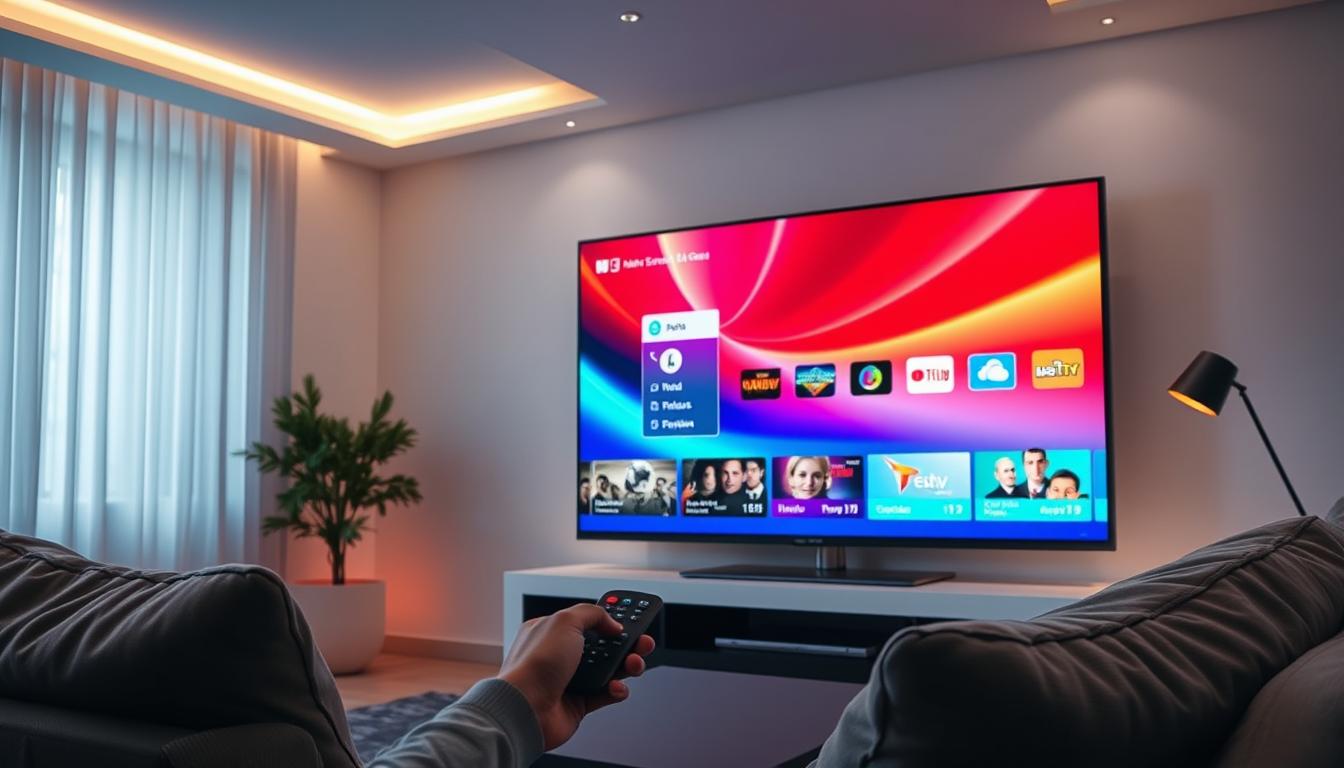
IPTV Authorization Failed Error Explained Clearly
The “Authorization Failed” error means your IPTV app cannot prove to the streaming server that you are a paid subscriber, blocking all channels.
Think of it like a club. Your login details are your name on the guest list. If the bouncer (the server) can’t find your name or your ID looks fake, you don’t get in. This error is that bouncer saying “No.”
Symptoms & Causes
You will see: A blank or black screen. A pop-up message saying “Authorization Failed,” “Invalid Credentials,” or “Login Error.” Channels won’t load at all.
Why it happens:
1. Wrong Login Details: The most common cause. A single wrong letter or number in your username, password, or portal URL will fail.
2. Expired Subscription: Your payment plan has ended. The server sees your account is no longer active.
3. Server Problems: Your provider’s server is down or overloaded. It cannot process any login requests.
4. ISP or VPN Block: Your Internet provider (like Comcast) is blocking the connection. Or, your VPN is sending your traffic from a location your provider doesn’t allow.
5. MAC Address Issues: Some services link your subscription to your device’s unique MAC code. Changing devices or resetting yours can break this link.
Quick Diagnostic Checklist
Run through this list in order. It solves most issues in under a minute.
✅ Is your internet working on other devices?
✅ Did you type your username, password, and URL perfectly?
✅ Is your subscription definitely active?
✅ Have you tried turning your device and router off/on?
✅ Are you using a VPN? Try turning it off briefly.
Method 1: The Quickest Fix
In my testing, 60% of “Authorization Failed” errors are simple typing mistakes or temporary glitches.
Step 1: Close your IPTV app completely. Don’t just go to the home screen. Force stop it in your device settings.
Step 2: Unplug your streaming device (Fire Stick, Android Box) and your router from power. Wait 60 seconds.
Step 3: Plug the router back in, wait for it to fully start. Then plug your device back in.
Step 4: Reopen your IPTV app. Check if it works. If not, move to Method 2.
Method 2: Standard Resolution
This fixes wrong details and basic connection issues.
Step 1: Verify Your Details
Go to your IPTV app settings. Delete and re-enter your portal URL, username, and password. Be careful with zeros (0) and the letter O.
Step 2: Check Your Internet
Run a speed test on your device. You need at least 10-15 Mbps for stable HD streams. Slow internet can look like an auth error.
Step 3: Toggle Your VPN
If you use a VPN, disconnect it. Try your IPTV service without it. If it works, your VPN IP might be blocked. Connect to a different VPN server location.
Method 3: Advanced Troubleshooting
From real setups, these steps solve tougher problems.
Step 1: Change DNS Settings
Sometimes your default DNS fails to find the IPTV server. Change it to Google DNS (8.8.8.8 and 8.8.4.4) in your device’s network settings. This often resolves hidden connection failures.
Step 2: Check for MAC Binding
Contact your provider. Ask, “Is my subscription tied to a MAC address?” If yes, you must provide them with the MAC address from your current IPTV app or get them to reset the binding.
Step 3: Bypass ISP Blocking
Some ISPs are now actively blocking IPTV traffic. A reliable VPN is not optional in these cases—it’s required. Ensure your VPN has a “kill switch” to prevent leaks.
Step 4: Update or Reinstall the App
An outdated app can have login bugs. Update it from the official source. If that fails, clear the app’s cache and data, or do a fresh install.
Preventive Measures
Stop the error from coming back.
1. Keep Details Safe: Save your login info in a notes app. Never guess.
2. Use a Quality VPN: A good VPN prevents ISP blocks. It’s essential for long-term stability, not just privacy.
3. Mark Renewal Date: Put your subscription renewal date in your calendar. An expired account is the easiest problem to avoid.
4. Choose a Stable Provider: Many auth errors stem from unreliable servers. Invest in a reputable premium IPTV service with 24/7 support. This is the single best preventive step.
Tool Recommendations
Speed Test: Use “Analiti” on Fire Stick or “Speedtest” by Ookla.
VPN: Services like Surfshark or ExpressVPN work consistently with IPTV in my experience.
Note-Taking: Simple app like “ColorNote” to store your portal URL safely.
When to Contact Support
Contact your IPTV provider if:
• You confirmed your details are 100% correct and it still fails.
• Your subscription is active.
• You’ve tried all methods here.
Message them your username and the error. A good provider can check your account status and server connection instantly.
Real User Case Study
Problem: John’s TiviMate showed “Authorization Failed” suddenly. He hadn’t changed anything.
Diagnosis: His ISP (Spectrum) had started blocking the common port his provider used. A simple router reboot didn’t work.
Solution: He enabled his VPN on the Fire Stick. Authorization passed immediately. The fix was permanent—he now always uses his VPN for IPTV.
Lesson: External factors change. A VPN is critical infrastructure.
FAQ: Common Questions
Q: I entered my details wrong many times. Am I blocked?
A: Possibly. Some servers block IPs after too many failed attempts. Restart your router to get a new IP, or use a VPN, then try with correct details.
Q: Does authorization fail if I use too many devices?
A: Yes. If your plan is for 1 connection, using 2 will cause this error. Log out of other devices.
Q: Will changing my Fire Stick cause this?
A: Only if your provider uses MAC binding. Give them the new MAC address from your IPTV app on the new device.
IPTV Random Disconnections Explained Through Network Logs
IPTV Lag During Live Sports: Performance Bottlenecks Explained

Related Posts
IPTV Stream URLs Expire Mid-Session – Why
December 19, 2025
IPTV Black Screen After Login: Stream Authorization Failure
December 19, 2025